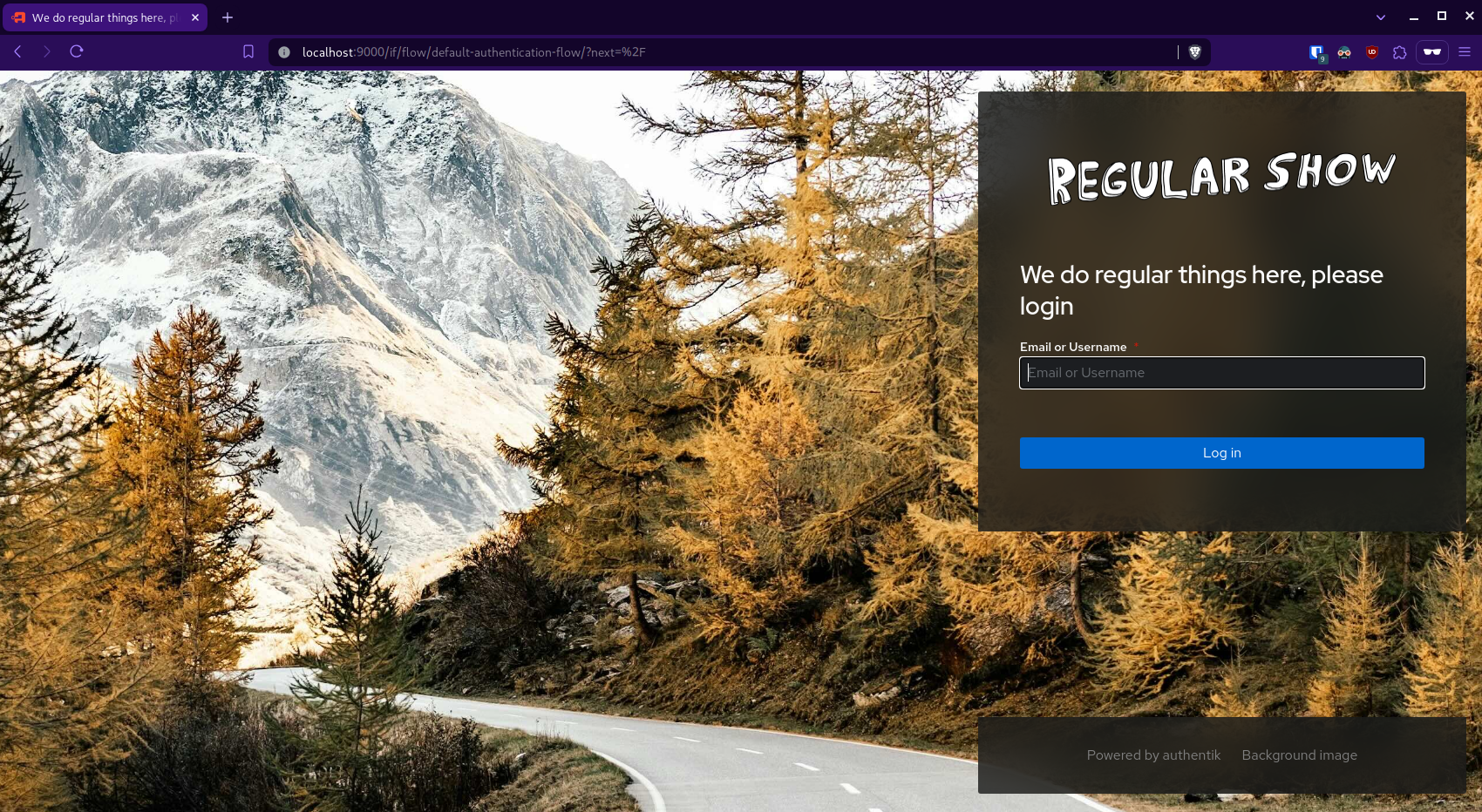
Change authentik logo/branding
A simple guide on how to change the logo / branding on a Authentik installation
Introduction
Authentik by default uses the Authentik logo while logging in and mentions Authentik in the login screen too, Changing this can be done fairly easily and can improve the user experience.
Changing the text in the login screen
Go to admin interface > Flows and Stages > Flows (/if/admin/#/flow/flows) and edit the default authentication flow with the edit button to change to text inside.
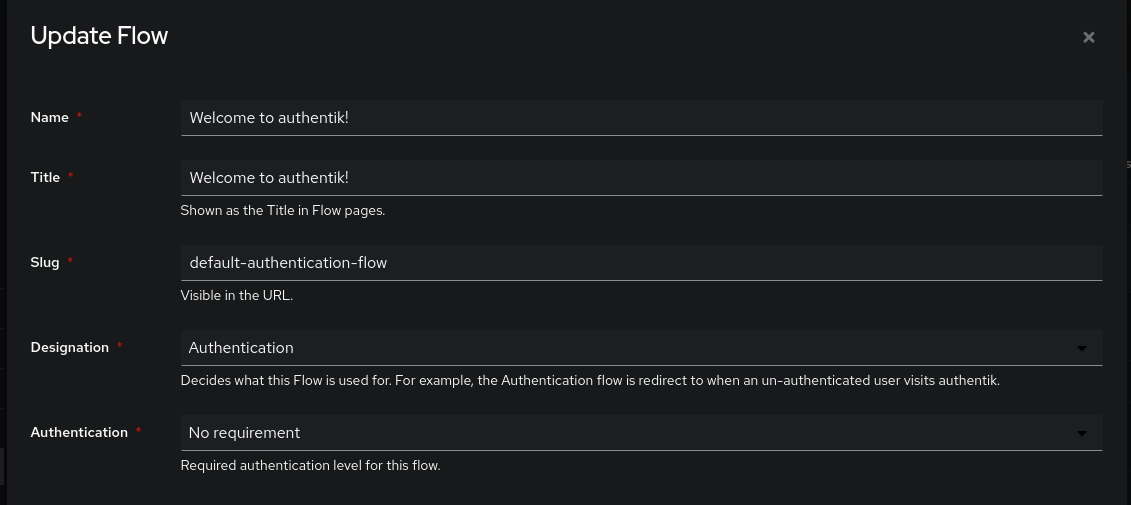
After this hit update and do it for the other one and that should be changed now.
Changing the icon & CSS
Changing the icons is a bit more involved it requires you to edit the docker-compose.yml to mount the new images
volumes: - ./media:/media - ./custom-templates:/templates - ./branding/brand_icon.png:/web/dist/assets/icons/icon_left_brand.png # Add the brand icon in the ./branding folder next to your docker-compose - ./branding/favicon.ico:/web/dist/assets/icons/favicon.ico # Add the faviconYou can create a branding folder for example and put your branding images in there. Then you can restart Authentik and go to the admin interface > System > Brands location and edit authentik-default and update the new logos to the following location in this example.
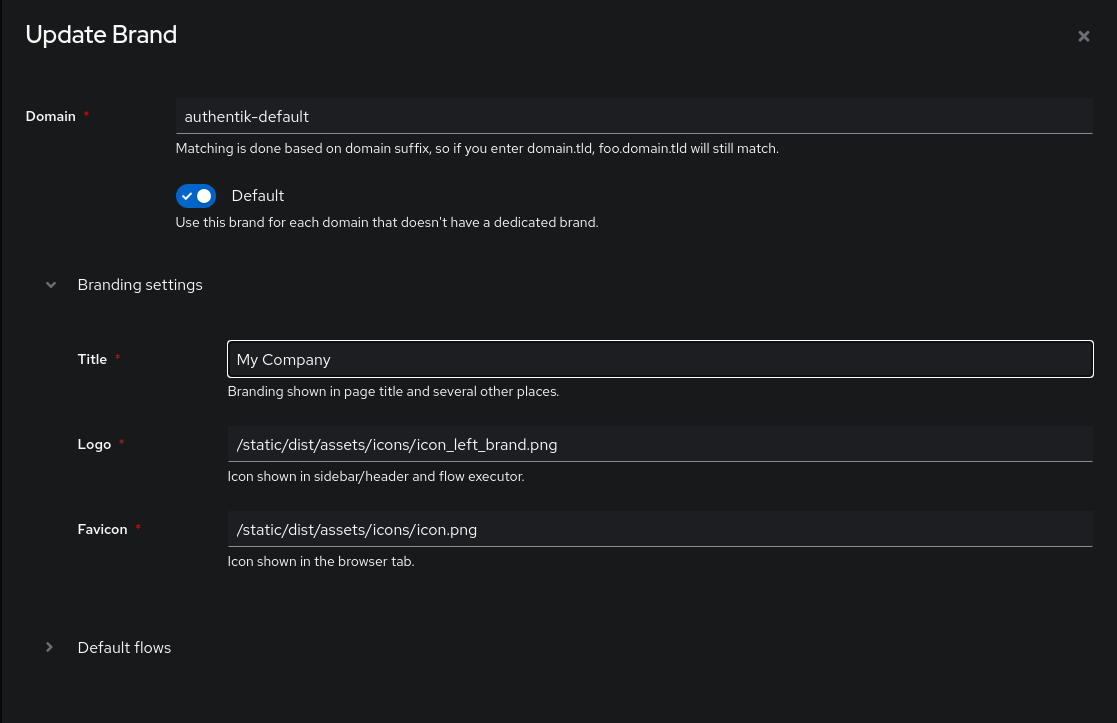
logo: /static/dist/assets/icons/icon_left_brand.png
favicon: /static/dist/assets/icons/icon.png
You can also change the title here to something else than Authentik
Styling with custom css can also be done in the brands section admin interface > System > Brands > Custom CSS, you no longer need to mount a custom.css. You can view This authentik discussion for some inspiration on what you can do with custom css